How to Use ChatGPT and Claude for Ecommerce
You know what makes your product worth buying. Perhaps you've spent years learning your craft, choosing your range or helping customers find the right thing. Now you want an online business that reflects that care, whether you're preparing your first launch or improving a store you already run.
ChatGPT and Claude can help you draft product descriptions, answer buying questions and prepare launch emails from information you supply. This guide walks through one product launch, then shows how to turn the reviewed work into a storefront brief and a method you can reuse.
You don’t need to become an AI expert before you start. Begin with one product and the information you already have; your experience gives the assistant something useful to work with.
If you already run a store, start with your own product sheets, brand notes and current policies.
If you're preparing your first launch or want to practice, use the Bramble Coffee files below. Upload whichever files you choose to ChatGPT or Claude to begin. Connections and scheduling come later, when you have a reason to use them.
Bramble Coffee is a fictional retailer with one-time buying and optional subscribe-and-save.
Download its product facts, prompts and completed examples to try the workflow.
Try your first ecommerce prompt
Start with a product you’re proud of—one you’d love more people to discover. Give ChatGPT or Claude the details you’d share with a customer: what makes it worth buying, what it costs and who it’s for.
You can upload an existing product page or product sheet, along with a little writing that sounds like your business. Check that the prices and policies are up to date.
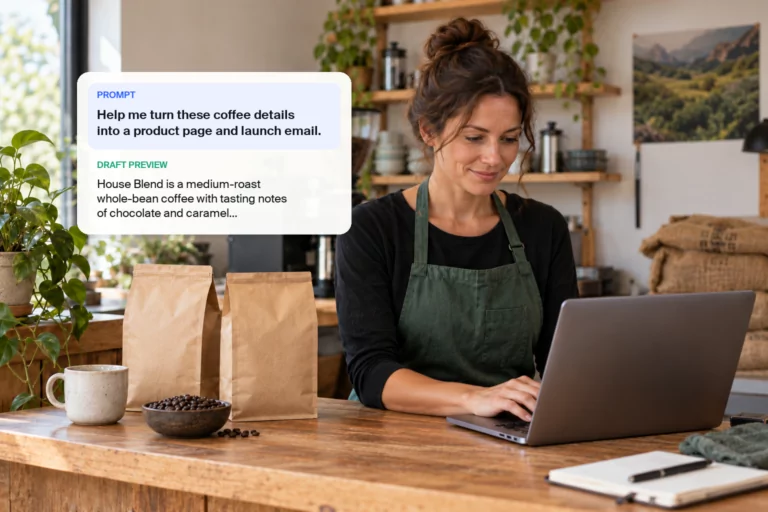
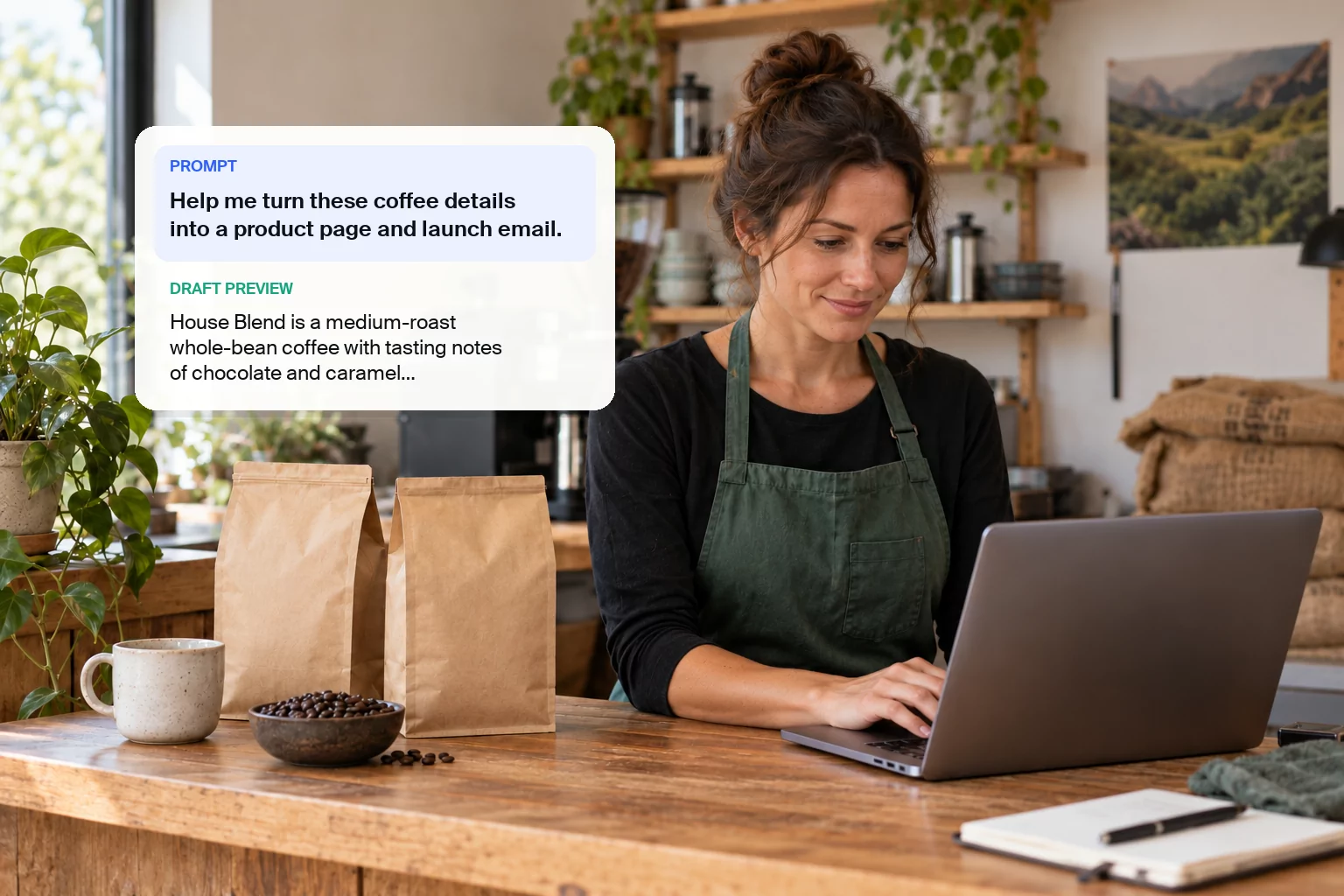
Want to try it out first? Use the Bramble Coffee files. Then ask:
Now read it as a customer. Can you see what makes the product worth buying? Does it answer the questions people usually ask you?
If something feels too general, tell the assistant what would help: “Start with what the product is made from and why that matters.”
You don’t need to get everything right in one prompt. A little feedback can bring the draft closer to your business.
You’ve now tried the basic back-and-forth: share what you know, ask for a draft and help the assistant improve it.
The same approach can help with a bigger job, such as preparing a product page, buyer FAQs and launch email together. Let’s walk through how to give that work a clear direction.
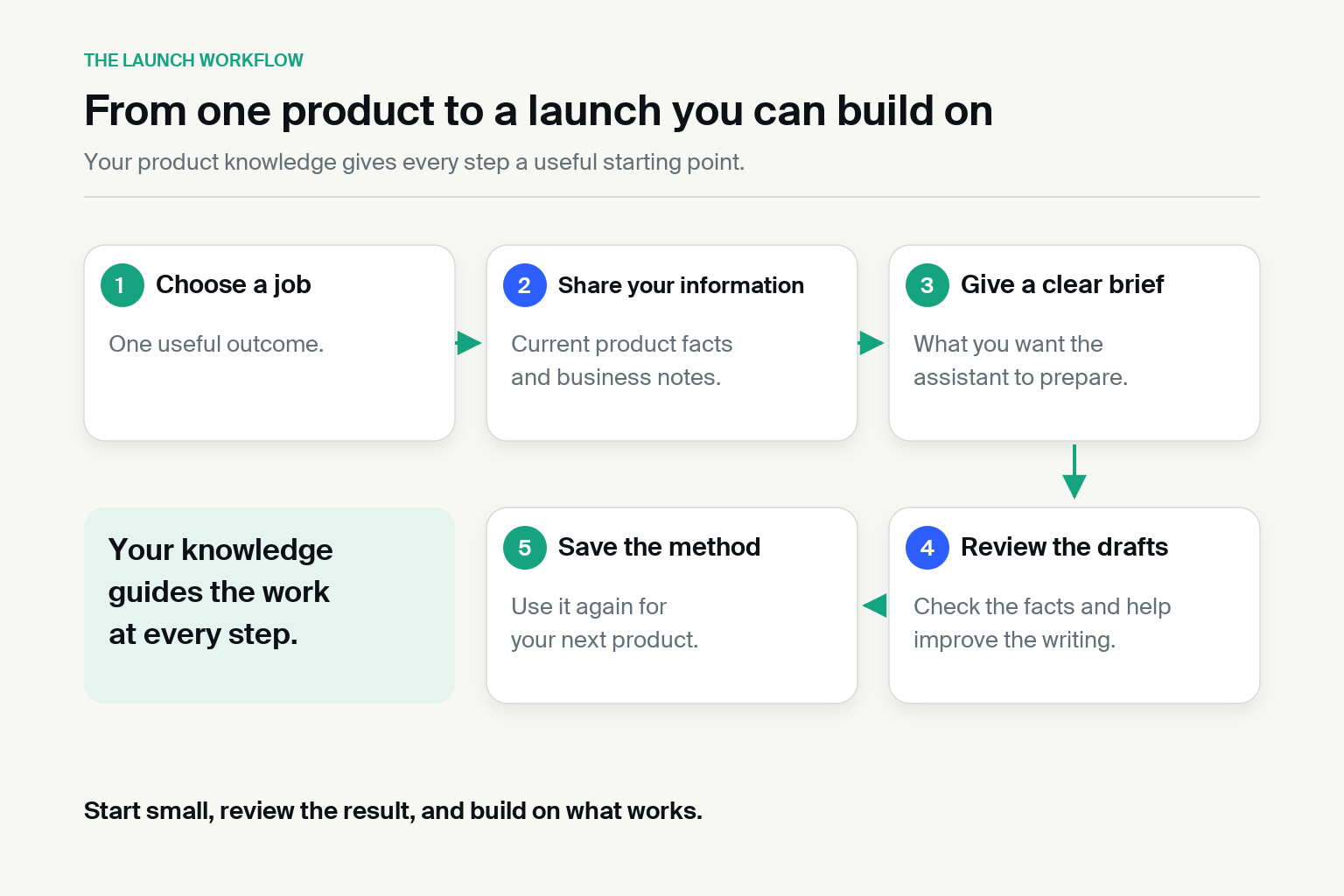
Choose the next job for your business
What would you like to get ready for your business next?
Perhaps a new product deserves a better introduction. Maybe you’re planning an email to customers, or answering the same delivery question again and again.
Choose something that would make a useful difference to your launch or your working day.
The table shows what information to share and what to ask for.
|
What you want to do |
What to share |
What to ask for |
|---|---|---|
|
Prepare a product launch |
Product details, buying options, who it’s for and examples of your writing |
Product page, buyer FAQs and launch email |
|
Plan an email campaign |
What the emails should achieve, why customers might buy now and the current offer |
Email sequence with subjects and draft copy |
|
Draft a customer reply |
The customer’s question and up-to-date product details and policies |
A reply you review before sending |
|
Research customer questions |
Customer messages or reviews, with dates |
Common questions, examples from the messages and suggested improvements |
|
Investigate a sales change |
Sales reports, the dates to compare and what the totals include |
A summary checked against your reports and questions to explore |
For this walkthrough, we’ll prepare a product page, buyer FAQs and launch email together. Using the same product facts helps the three pieces describe one consistent offer.
We’ll set up the files, give the assistant a clear brief and review the drafts. Use your own business information or follow along with Bramble Coffee.
Give your AI assistant a place to work
Your first prompt can produce a useful draft. As you prepare more products, emails and pages, you’ll want the assistant to build on what you’ve already established.
Why use a workspace for your business?
Have you ever asked AI to write about your business and received something that could describe almost any store? Or found a detail you never supplied—a product benefit, a delivery promise or a claim that simply isn’t true?
You can correct the draft, but you may find yourself explaining the same things again in the next conversation: what you sell, who it’s for and how you want to sound.
Keeping that information in a business folder gives the assistant clear sources to work from. With access to those files, it can use your product facts and writing guidance, save the drafts and revise them with you.
You still need to check the work. The folder gives the assistant better grounding; it doesn’t guarantee that every answer will be correct.
Use chat to discuss an idea or get a quick draft. For a larger task, a workspace helps the assistant use your business files, save related drafts and revise them with you.
Choose where to do the work
For the folder-based exercise below, choose one of these desktop routes:
Codex: open a business folder as a project, then describe the task you want completed. The assistant can work with files there and save drafts for you to review. You don’t need to write code for this exercise.
ChatGPT Work: another OpenAI route for delegating tasks with files and tools. In the desktop app, use local file access for this exercise. If you already use Codex, you can stay there.
Claude Desktop: describe the task and give Claude access to your business folder when prompted. Some accounts still show a Cowork option; others use one combined conversation. Tasks may run in the cloud while accessing permitted files through the desktop app.
Use one route; you don’t need all three. The OpenAI desktop setup guide and Claude setup guide explain the current options. Folder access and other tools depend on your plan, app version and permissions. If folder access isn’t available, upload the files to continue.
See the Bramble Coffee workspace
The resource pack includes a ready-made Bramble Coffee folder. Here’s what’s inside:
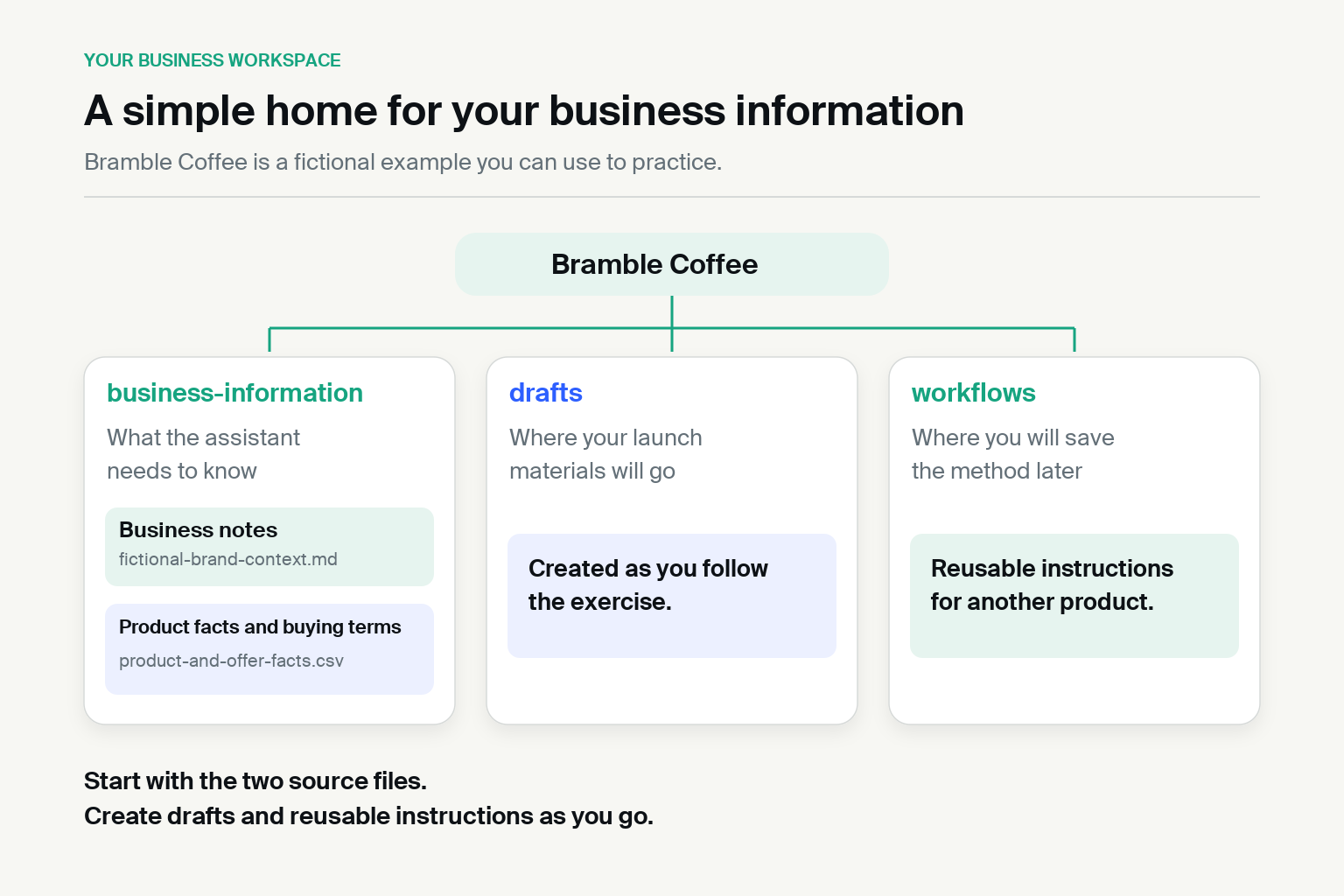
Bramble Coffee
├── business-information
│   ├── fictional-brand-context.md
│   └── product-and-offer-facts.csv
├── drafts
└── workflows
Inside business-information, fictional-brand-context.md introduces Bramble’s customers and writing style. product-and-offer-facts.csv supplies the product details, prices, shipping and subscription terms.
The .md file is a text document and the .csv file is a table. You can use the supplied files without learning either format.
Drafts: keep the launch materials you create here.
Workflows: leave this folder for later, when we’ll save instructions for repeating a task. Both folders start with a short README note explaining their purpose.
Open the folder and check the assistant can read it
1. Download the resource pack and unzip it. Find the folder named Bramble Coffee; the completed examples and reference templates sit outside it.
2. Open your chosen desktop assistant. In Codex, open Bramble Coffee as a project. In Claude Desktop, describe the task and grant access to that folder. For ChatGPT Work, use the desktop setup guide to enable the file access available to your account.
3. Start a task and paste this request:
4. Check the answer against the files. It should identify House Blend coffee, home coffee drinkers and product-and-offer-facts.csv as the source for prices and buying terms.
If the assistant can’t read the files, confirm the folder or filenames and ask it which source it cannot access. Upload the two files if needed. If it can’t save a draft, ask for a downloadable document or the text to save yourself.
Using your own business? Keep your existing filenames and identify the exact business and product files in the request. Replace Bramble Coffee with your business name and check the answer against your records.
Bramble’s background is already prepared for you. Next, we’ll look at how to create useful business notes for your own store, so the assistant has the information it needs to represent your products and customers.
Help the assistant understand your business
Imagine someone joining your business to help with your next launch. Before they could write a useful product page, you’d explain what you sell, who buys it and what customers need to know.
Your AI assistant needs that background too. Keep it in business-information so you can use it across different tasks. This background is often called context.
Start with two kinds of information. These can be two simple documents, or current files you already maintain. You don’t need special filenames or formats.
Business notes: introduce your business and your voice
Explain what you sell, who you serve and whether you’re planning a launch or running an existing store. Describe what matters to your customers and how you want to speak to them.
Include a few short pieces of writing you’d be happy to publish. An example gives the assistant something concrete to follow, rather than leaving it to interpret words such as “warm” or “premium.”
Bramble’s fictional-brand-context.md identifies home coffee drinkers as the audience and asks for plain, useful language. Its writing example begins: “Whole beans, a medium roast, and tasting notes of chocolate and caramel.”
This shows the assistant how to lead with concrete details and familiar words. Include examples that also show how you help customers understand their choices.
Product information: supply the facts customers need
Share product specifications, prices, buying options, shipping information and relevant policies. If you sell a subscription, include what arrives, what each delivery costs, when charges repeat and how customers can change or cancel it.
Bramble’s product-and-offer-facts.csv records House Blend as whole-bean coffee in 250 g bags. A one-time bag costs $14, plus $4 shipping per order. Those details come from the product file; the business notes guide how the assistant explains them.
Together, the files give the assistant a factual starting point and a way to write for Bramble’s customers. Ask it to use product information for factual statements, writing examples for tone and to flag any disagreement between sources.
Prepare the notes for your own business
If you’re practicing with Bramble, these files are already prepared. If you’re using your own business, the resource pack includes brand-context-template.md outside the Bramble Coffee folder. Use it to write a short introduction, or as a checklist for notes you already have. Save your completed version in your own business-information folder.
You can ask the assistant to help you prepare the notes. Try:
For product information, use a product sheet, catalog export or other documents you keep up to date. Include the policies that apply to the task and the buying options you actually offer.
Start with what you know. If a policy is still undecided, mark it as undecided and ask the assistant to flag the gap rather than fill it in.
When a price, policy or decision changes, update the source document. Keep older drafts separate so they don’t compete with current information. Identify the current files when starting a new task.
The assistant now has the background. Next, tell it what you want to get done—we’ll turn your chosen task into a clear brief.
Write a brief for the outcome you want
Your business files explain what the assistant needs to know. Now give it a clear job: what you want prepared, which files to use and where to save the result.
Let’s prepare a small launch for Bramble Coffee’s House Blend: a product page, answers to common buying questions and an email introducing the coffee.
Use the prompt below in your Bramble workspace. For your own business, replace the source paths, business name, product and audience with your actual choices. Include only the buying options you offer.
If you’re working through uploads, attach the two source files. Replace the prompt’s first instruction with “Read the two files I’ve attached and prepare launch drafts for Bramble Coffee’s House Blend for home coffee drinkers.” In the final instruction, ask for one downloadable document in a supported format instead of saving to a folder.
This saves the drafts as one text document in your drafts folder. You should receive the product page, FAQs and email, plus a separate list of unanswered questions.
Open the drafts the assistant created. Next, we’ll check the facts and use Bramble’s example to show how specific feedback improves the writing.
Review and improve your launch drafts
Open drafts/launch-materials.md, or the document you downloaded. Your wording may differ from Bramble’s example. What matters is whether it represents the product accurately and helps a customer decide.
Start with the product details, prices, shipping and buying terms. Compare them with your source files and flag anything the assistant added without support.
Improve the draft with a specific follow-up
In Bramble’s example, the first description opened, “Find your everyday coffee in Bramble Coffee’s House Blend.” The opening could fit many coffee products; it didn’t yet tell a shopper what made this coffee worth considering.
This follow-up gave the assistant a specific direction:
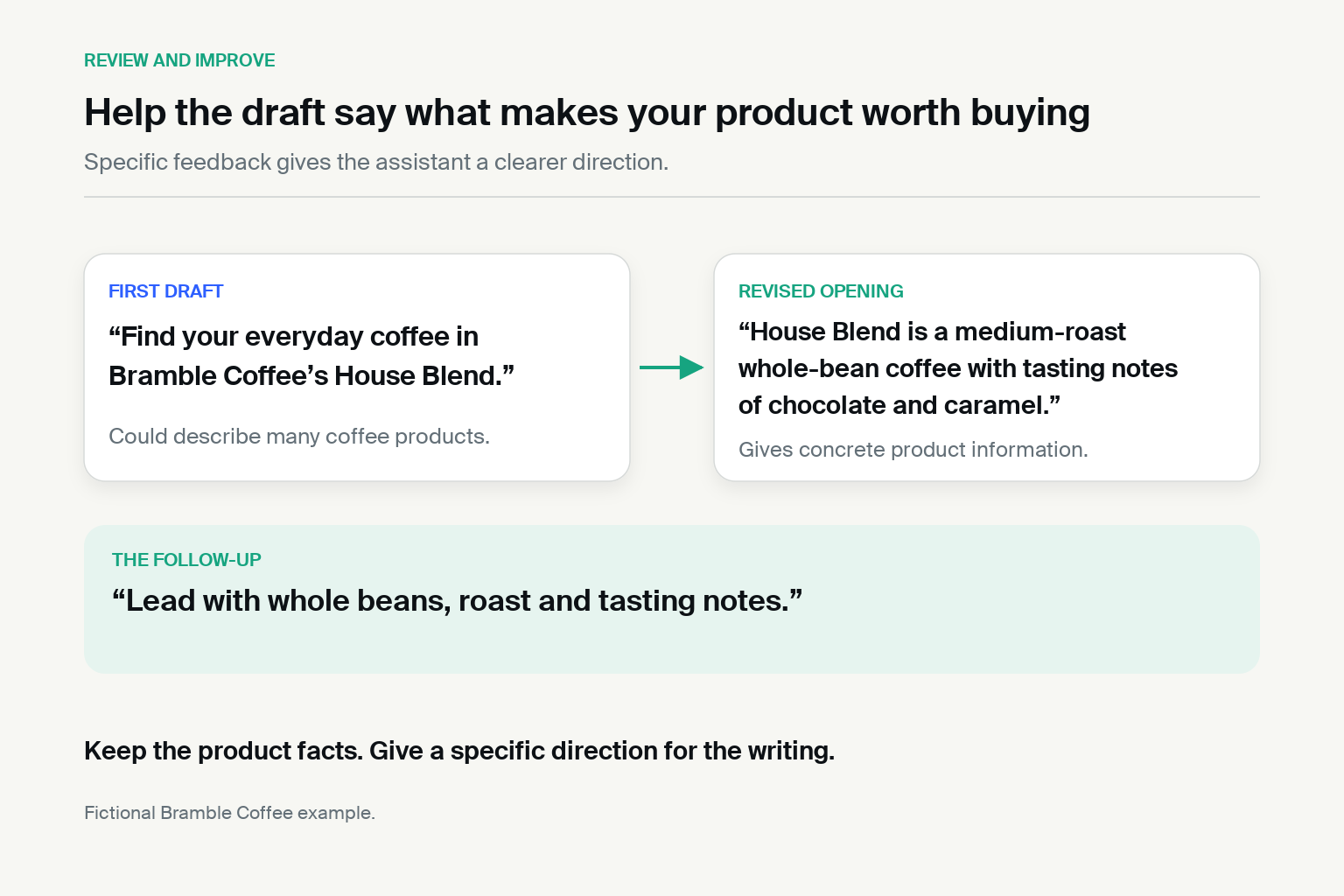
Bramble’s opening before and after a specific follow-up.
The revised opening tells shoppers what the coffee actually is. Here is Bramble’s edited product-page example for comparison with your own draft:
Bramble Coffee: completed product-page example
House Blend is a medium-roast whole-bean coffee with tasting notes of chocolate and caramel. Each bag contains 250 g, so you can try one bag before deciding how much to buy next. Choose a one-time purchase if you want to order when you need more. For regular deliveries, the optional subscription contains two bags every four weeks. The product details and buying options below explain the quantity, charges and schedule before you choose.
Specifications: whole beans; medium roast; chocolate and caramel tasting notes; 250 g per bag.
One-time purchase: one bag for $14 or two bags for $28, plus $4 shipping per order. No recurring charge.
Optional subscription: two 250 g bags for $24 plus $4 shipping per delivery. The first charge is at checkout; later billing and dispatch occur every four weeks. Skip or cancel through your account at least two days before the next scheduled charge. No minimum number of deliveries. Taxes, if applicable, are calculated at checkout.
Shipping: contiguous United States only. Dispatch within two business days of each charge. No arrival estimate is supplied.
For your own product, identify the information a shopper needs: fit, materials, preparation or what a service includes. Tell the assistant which passage needs improvement and what to change, while preserving the facts and buying options.
Develop a subscribe-and-save option
If customers regularly use up your product, an optional recurring delivery could give them a convenient way to buy again. First decide whether that fits your product and customers.
Bramble’s files and launch prompt already include a recurring offer. If you’re following that example, review how the two-bag delivery every four weeks is presented alongside buying once. You don’t need to create a second offer.
For your own business, ask the assistant to help outline an offer before adding it to the launch drafts:
Review the proposed terms against what you can deliver and the costs you need to cover. Once you’ve decided the offer, update the product source file and ask the assistant to revise the page, FAQs and email from those facts.
Subbly’s Subscribe and Save bundle supports one-time purchases and recurring delivery, with optional subscription discounts. This bundle type requires the Advanced plan to make it available for purchase. Configure the buying options using the terms you’ve agreed, then check that the launch copy matches the product and checkout settings. Bramble’s fictional terms are examples, not platform defaults.
If subscriptions don’t suit your product, keep the one-time offer and continue with the review.
Check that the buying information agrees
Read the product page, FAQs and email together. Do they show the same quantities, prices, shipping charges and delivery frequency? Each piece can have a different job without changing the offer.
Here is one FAQ from the same draft:
Can I buy without subscribing?
Yes. Buy one 250 g bag for $14 or two for $28, plus $4 shipping per order. A one-time purchase has no recurring charge.
For example, “every four weeks” and “monthly” describe different schedules. Ask the assistant to check the full set:
The resource pack’s examples/launch-materials.md contains all five Bramble FAQs and the launch email if you’d like a completed example for comparison.
Ask the assistant to save the revised launch materials in the same draft document, or return an updated download. Keep unanswered questions separate for you to resolve.
Once you’re happy with the drafts, you can use them to plan the storefront. We’ll turn that reviewed work into a builder brief next.
Turn your launch materials into a storefront
Your reviewed launch materials give you a product explanation, buying options and answers to customer questions. Now use them to plan where that information belongs on your storefront.
Create a brief for the pages you need
A storefront brief is a page plan: which pages you need, what each should contain and how customers find the buying options. Ask your assistant:
For your own business, name your actual files and product. If you already have a store, ask for a revision brief for the page you want to improve and share its current copy or screenshots. If you’re using uploads, request a downloadable brief instead.
Read the brief before building. Does it help a customer understand the product and find the right buying option? Resolve the important gaps and keep undecided details clearly marked.
Bring the reviewed brief into Subbly
ChatGPT or Claude can help create a storefront, but a working store needs somewhere to run—and a way to manage products, checkout, payments and subscriptions.
Building in Subbly brings the storefront onto the platform you’ll use to run the commerce side of your business. Your reviewed brief gives its AI builder a clear starting point, so you can carry the work forward into a store customers can buy from.
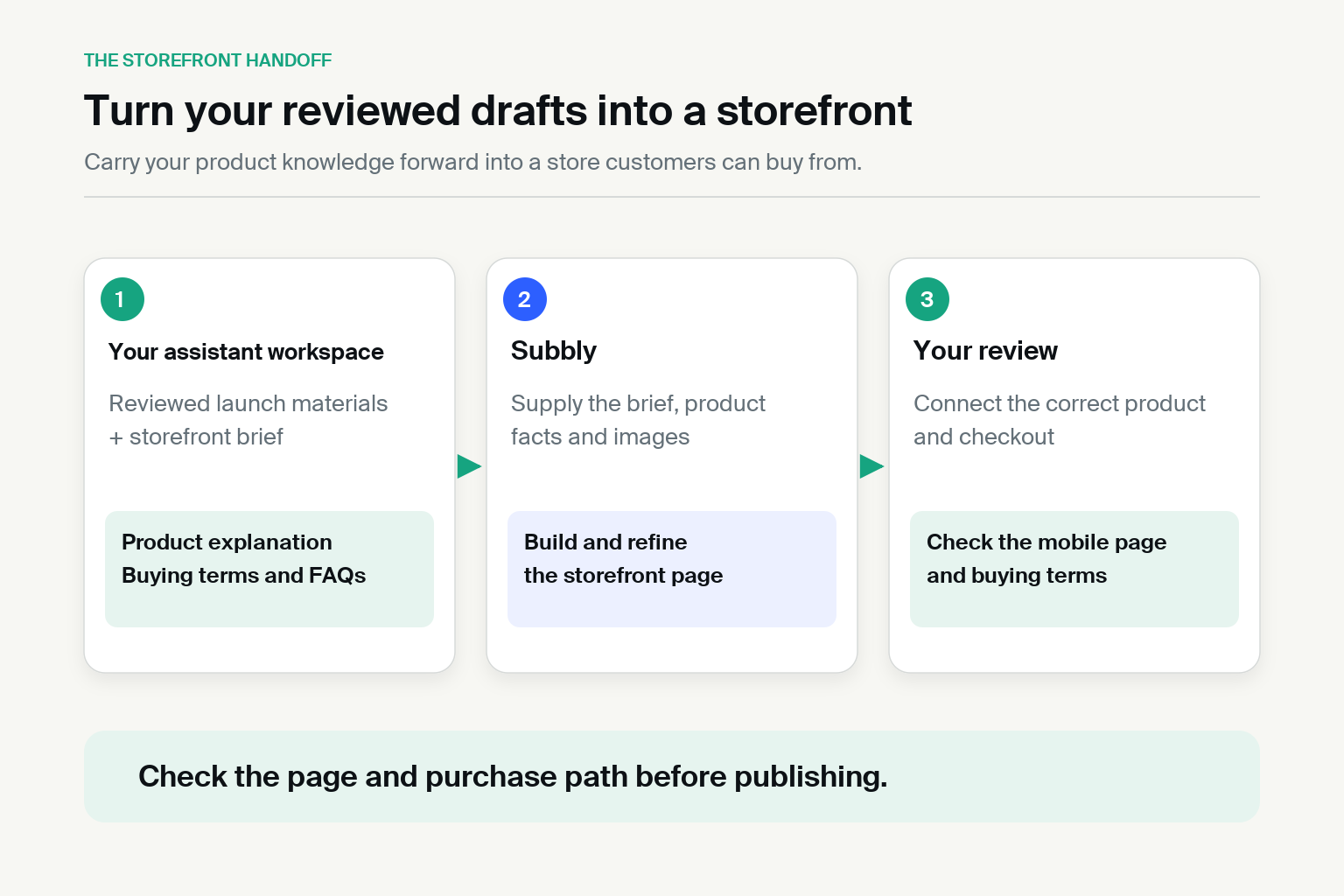
Subbly’s AI website builder lets you describe the store you want and refine it through further instructions. Open drafts/storefront-brief.md and paste its contents into the builder, along with the relevant product facts and buying terms.
Add your images using the builder’s supported upload options. Files in another assistant’s folder aren’t automatically available there.
Start with a focused section, then build on what works. The prompt below uses Bramble Coffee; replace the business and product names with your own when building your real store. Subbly’s prompting guidance explains how to make requests specific.
The buying choices on the page need to match the products and checkout you set up in Subbly. Create the product and its buying options, including any subscription price and delivery frequency, then connect the page’s purchase buttons to the right checkout. Subbly’s product-connection guide walks you through that handoff.
Review the preview and refine it
Give specific feedback on one improvement at a time. If shipping costs are easy to miss, for example, ask: “Show the product price and shipping charge together beside the buying options, using the supplied facts.” Once the first sections work well, ask the builder to complete the remaining sections in your brief and review each in turn.
Check the page on mobile. Can customers read the product details and understand their choices? Then follow the purchase path and check quantities, prices, shipping and recurring terms against the configured product and checkout before publishing.
The resource pack’s storefront-draft-brief.md provides a reference for preparing the inputs. The AI ecommerce website builder guide covers the building process in more detail.
For hands-on help, Subbly’s Launch Club offers free sessions where you can build alongside the team.
You now have reviewed launch materials and a brief you can use to build or improve a product page. Keep both in your workspace. Next, we’ll save the method so another product has a starting point.
Save a workflow you can run again
You’ve prepared launch materials, planned your storefront and reviewed a page in Subbly. Save the approach that worked, so introducing the next product feels more manageable.
When Bramble Coffee adds another blend, it can reuse the steps to prepare a description, buyer FAQs, a launch email and a brief for an additional product page. The new blend brings its own facts; the page builds on the existing store’s layout and style. This saved method is a workflow.
Keep the reusable instructions in your workspace’s workflows folder, in a file called product-launch-workflow.md. Keep each product’s drafts and storefront brief with that product’s work. If you’re using uploads, ask for a downloadable workflow document and keep it with your business files.
Ask your assistant:
The resource pack’s workflow-template.md gives you a starting point. Find it outside the Bramble Coffee folder.
Read your saved instructions: did they capture the feedback that improved the work? Check that Bramble-specific prices, quantities and subscription terms haven’t become rules for every product.
When you’re ready to introduce another product, identify the saved workflow, current business notes and new product facts in your workspace, or upload them to the task. Saving the workflow alone doesn’t make the assistant use it. For an existing store, also share the page layout or screenshots you want to build on. Then ask:
Take the reviewed page brief into Subbly using the process above. Build the additional page, connect the correct buying options, and check the preview and purchase path. You’re reusing a way to develop your store as your range grows, rather than planning the whole storefront again.
For now, a saved document is enough. If you use the method regularly, you can later turn it into a skill—a set of reusable instructions your assistant can follow, where supported.
You can stop here and use the method for your next product. The following store checks and recurring reviews are optional extensions when they would help your business.
Use current store information in your workflow
Your workspace holds the business notes and instructions that help the assistant write for you. Your store holds the buying options customers can actually purchase. A page might say “two bags every four weeks,” while the purchase settings say something different. Checking them together helps you catch that mismatch before a customer encounters it.
If you keep your business notes or product sheets in Google Drive, a supported document connection may also save repeated uploads. Identify the exact documents and ask the assistant to confirm what it read before drafting. You can continue with workspace files or uploads until a connection would be useful.
Connect your assistant to your store
A store connection lets your assistant read the product information you’ve set up in Subbly instead of asking you to export another file. Subbly provides this through an MCP server. MCP stands for Model Context Protocol—a way for an assistant to access another service’s information and tools.
Follow Subbly’s guide to connecting your assistant and choose the instructions for the assistant you use. Connect the intended store, review the access you grant, and ask the assistant to retrieve one known product to check that the connection works. Keep credentials in the connection settings.
This check is for a product already set up in your own store. Bramble illustrates the request below; the downloaded practice files don’t connect you to a Bramble store. If you’re still preparing your first launch, keep checking your drafts against the supplied files until you have a store to connect.
Give the assistant access to the reviewed launch-materials document. Replace House Blend and the file path with your own product and draft, then ask:
The connection may allow changes as well as reading. For this task, ask for a report only. Check the findings against the store records, then review and approve the exact proposed changes before allowing an update.
The resource pack’s store-mcp-workflow.md gives you a reference for this check. Use the Subbly builder process above when you need to create or refine the storefront page.
When you find a mismatch, decide which information needs correcting. If the offer has changed, update the relevant business files as well as the page so your next task starts with current facts.
Schedule useful recurring work
As your store grows, customer questions can show you what to explain more clearly. A weekly review can help you spot recurring questions and decide which answers belong on the product page.
Start with one review
Gather a week of customer questions—from emails, support messages or another source you already use—and save them in a file the assistant can read. Attach current product and policy information, and remove personal information the task doesn’t need.
If the messages don’t have IDs, number them so you can trace each finding back to its source.
To practice, attach feedback-week-1.csv from the resource pack and Bramble’s product-and-offer-facts.csv. Then ask:
Bramble’s first fictional batch gives a concrete example:
Finding: two of six messages ask about skipping or canceling a delivery.
From the fictional practice file feedback-week-1.csv: Message W1-05 asks, “If I still have coffee left can I skip the next delivery?” Message W1-06 asks, “How much coffee arrives each time and can I cancel?” W1-05 and W1-06 are the message IDs, which let you find each question in the file.
Proposed action: make the account controls and two-day change deadline visible beside the subscription offer. Draft a clearer FAQ using the supplied policy, then decide whether it belongs on the page or in a customer reply.
This finding comes from six fictional practice messages; it doesn’t show how common the problem is among customers. The pack includes both completed reviews and feedback-week-2.csv so you can repeat the exercise with different questions.
Schedule it if the review is useful
Before scheduling, decide how fresh messages will reach the source, which timezone defines the reporting week and where the report should be saved. The resource pack’s recurring-review-template.md helps you fill in those choices. Find it outside the Bramble Coffee folder. Adapt this request:
Replace the bracketed choices before using the request. Each run needs access to that week’s messages. Keep the source updated or use a supported connection; scheduling the practice CSV would only review the same messages again.
Check the scheduling options and source access available in your account. Use the Codex automation guide if you chose Codex, or the ChatGPT scheduling guide or Claude scheduling guide for those routes. If the task needs files on your computer, check whether the computer and desktop app must remain available for the run.
Review the first scheduled report for the correct week, fresh messages, useful grouping and the right destination. If you’re still preparing your launch, repeating the review manually may be enough.
Choose your next step
Your product knowledge, taste and care for customers guide the work. AI can help you turn that knowledge into clearer pages, useful launch materials and a store that reflects the business you want to build.
Build your first storefront in Subbly or add your next product page. If customers regularly replenish your product, consider an optional subscription alongside one-time buying.
You don’t need to transform the whole business at once. Start with one product you’re proud of and one task that would help you move forward. Use what you know, review what the assistant creates, and build from there.


Subbly – the purpose built platform for starting and growing subscription businesses